
Set-Up Guide / Requirements
Before we can connect TitleRepLink, please make sure your Qualia instance has the API enabled. To use our Starter link, you’ll need at least the HubSpot Starter level. For the Professional link, you’ll need a Pro level in at least one HubSpot product. Follow the steps below to get started, and if you need any help, feel free to contact us anytime.
Qualia API
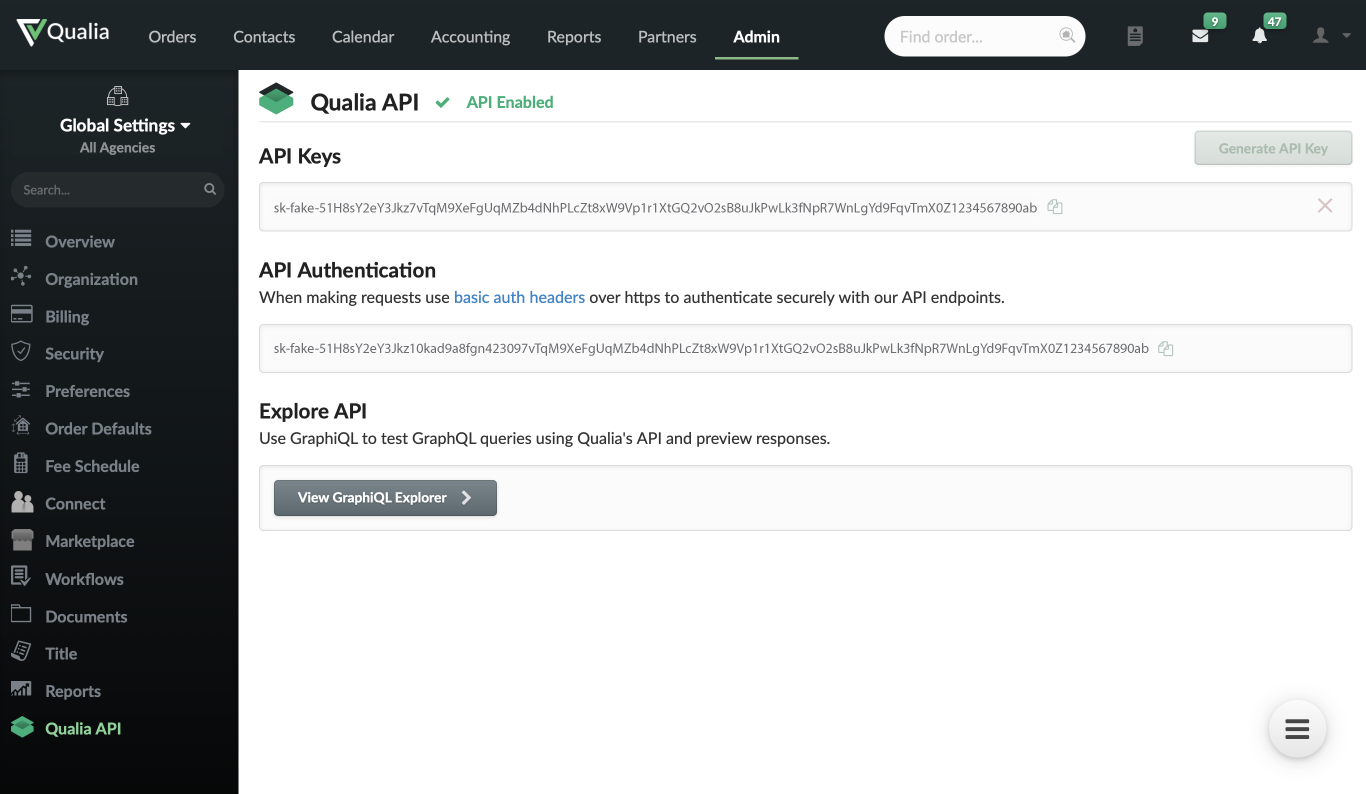
To access this information, log into your Qualia instance. Navigate to the Admin section, then select Qualia API. Both the API Keys and API Authentication Keys must be provided.
Note: Clicking "Generate API Key" will create new keys. If this action is taken, please ensure the updated keys are provided to us.
Hubspot Set-Up
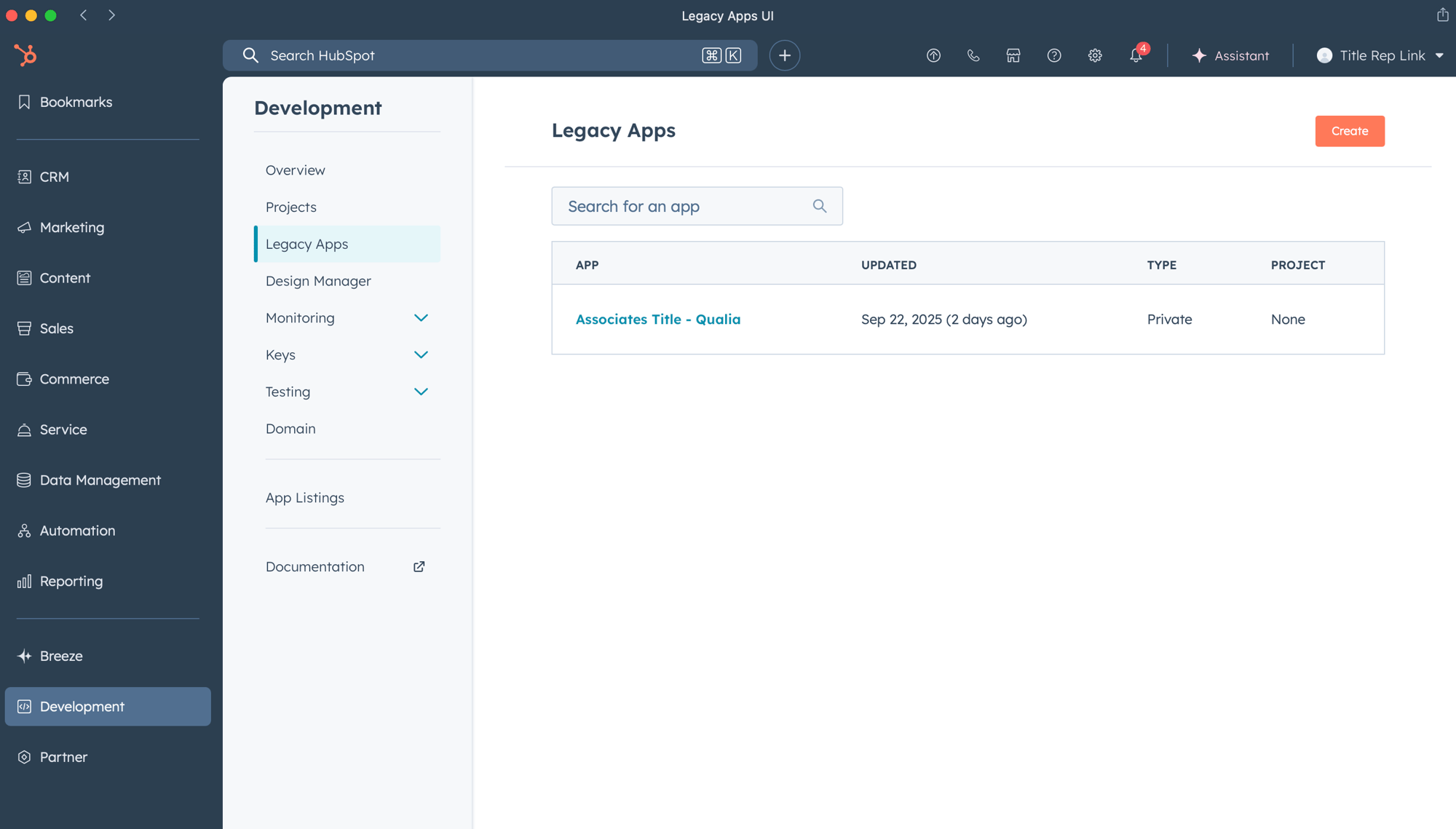
Within HubSpot, go to Development > Legacy Apps, then click the Create App button. Select Private as app type when asked.
App Settings
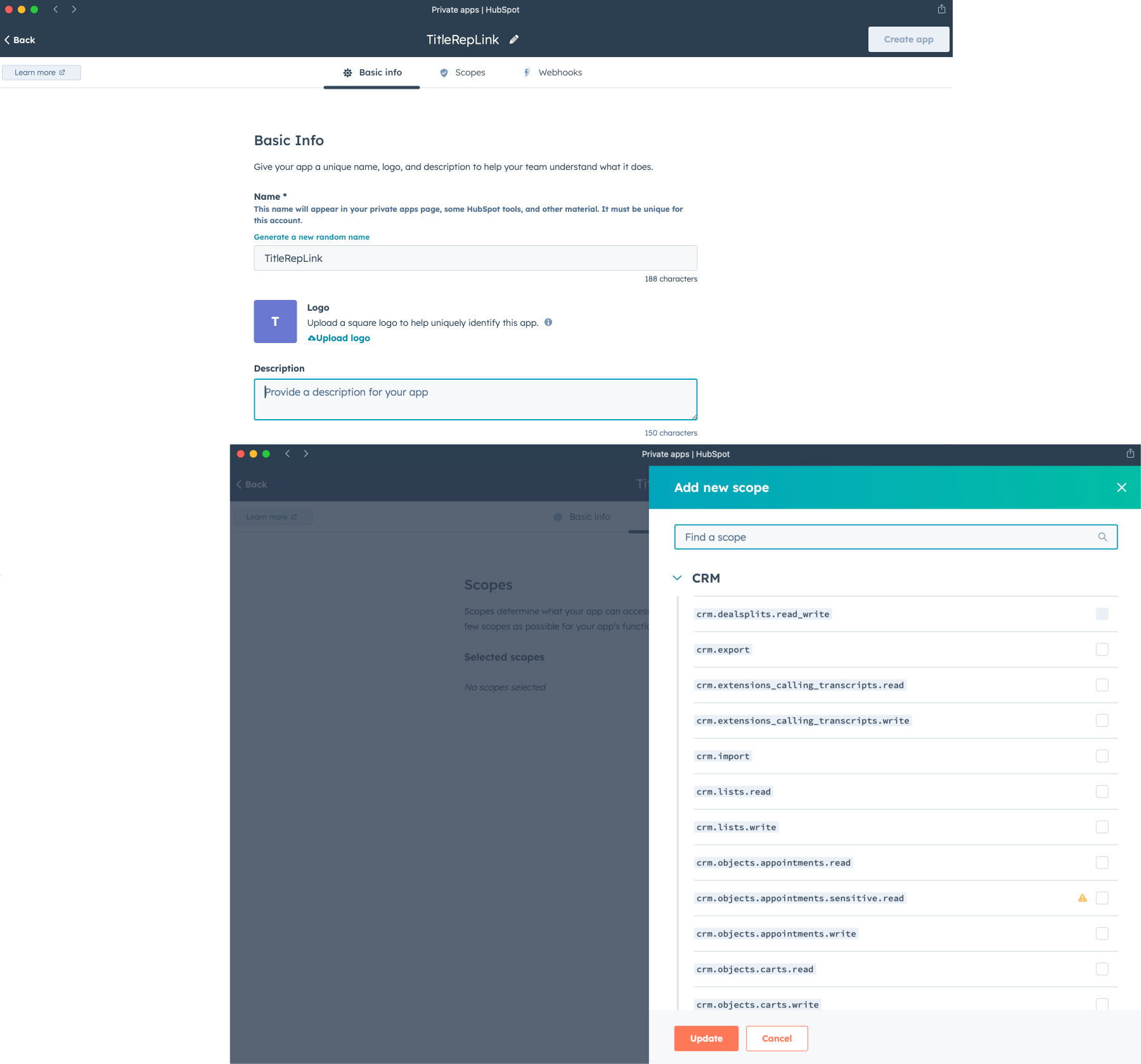
Name the app. Logo and description can be left blank. In the second tab, Scopes, find the following and place check mark next to them.
- tickets
- crm.objects.owners.read
- crm.objects.companies.read
- crm.objects.companies.write
- crm.objects.deals.read
- crm.objects.deals.write
- crm.objects.contacts.read
- crm.objects.contacts.write
App Settings Continued
Once all items are checked and you click Update, your screen will look like this. Save the app and then Continue Creating on the following window.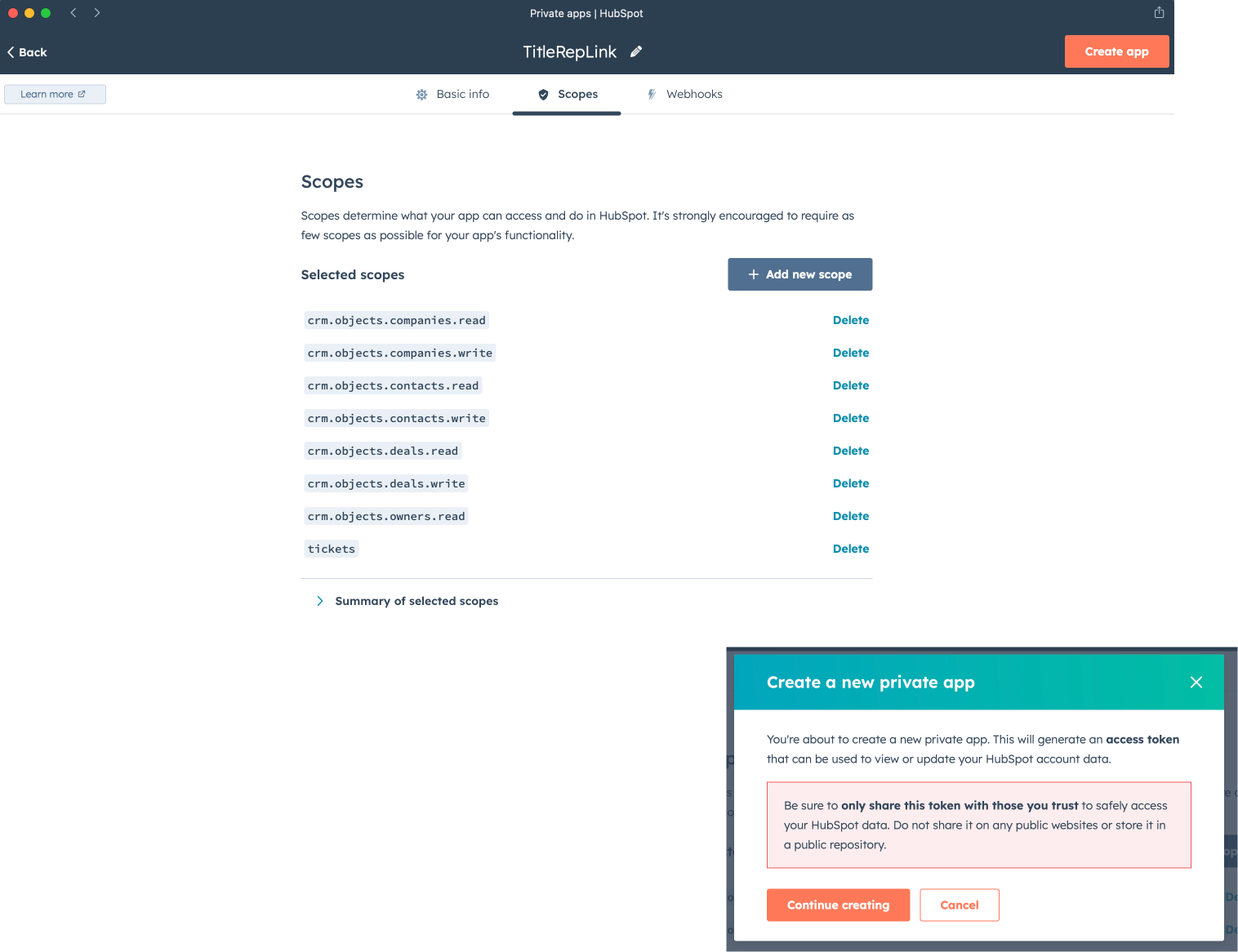
Provide Hubspot Access
Once the application is created, go to the Auth tab, copy the Access token and Client secret, take a screenshot of this page, and send all of this information to TitleRepLink.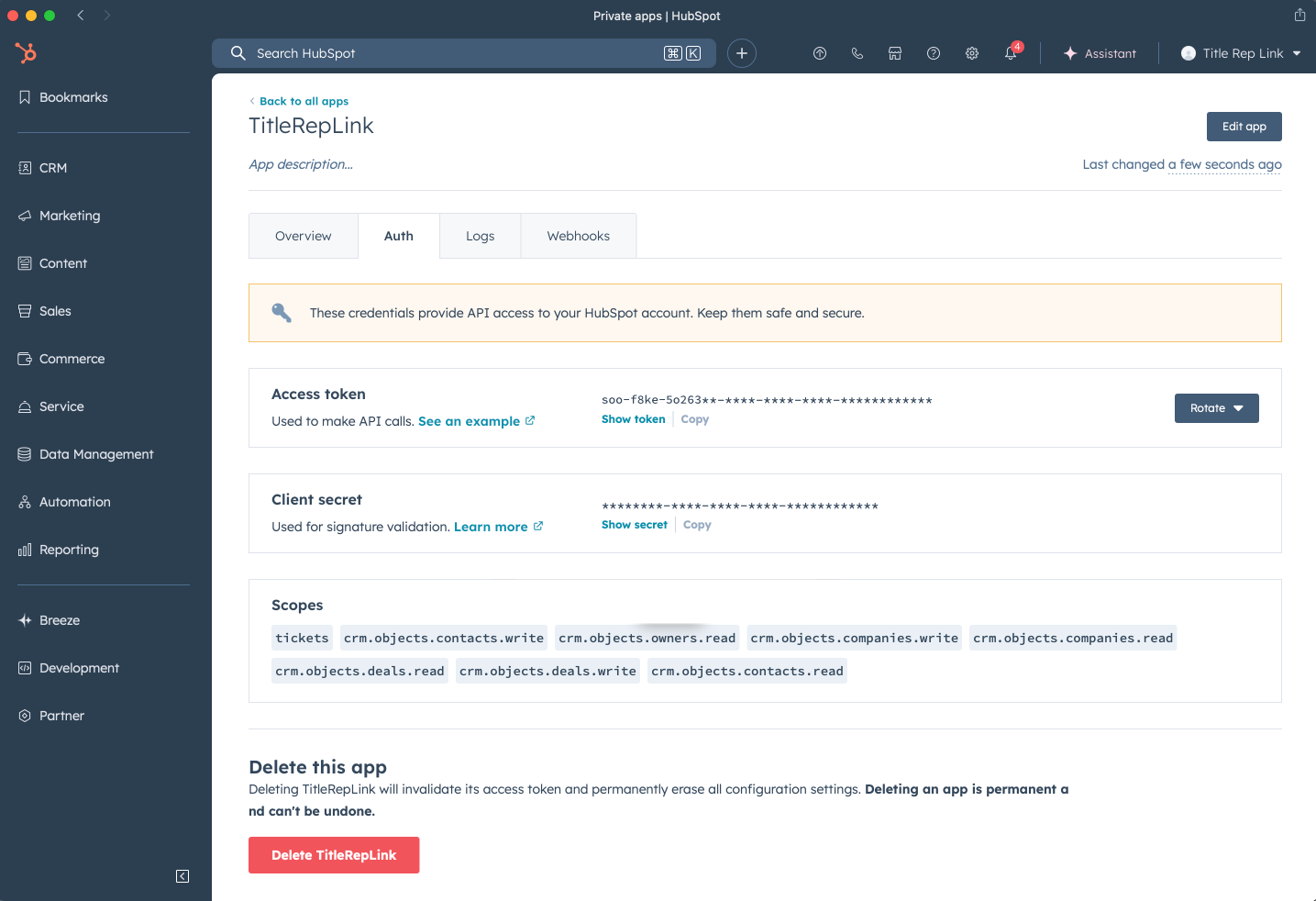
Property Field Creation
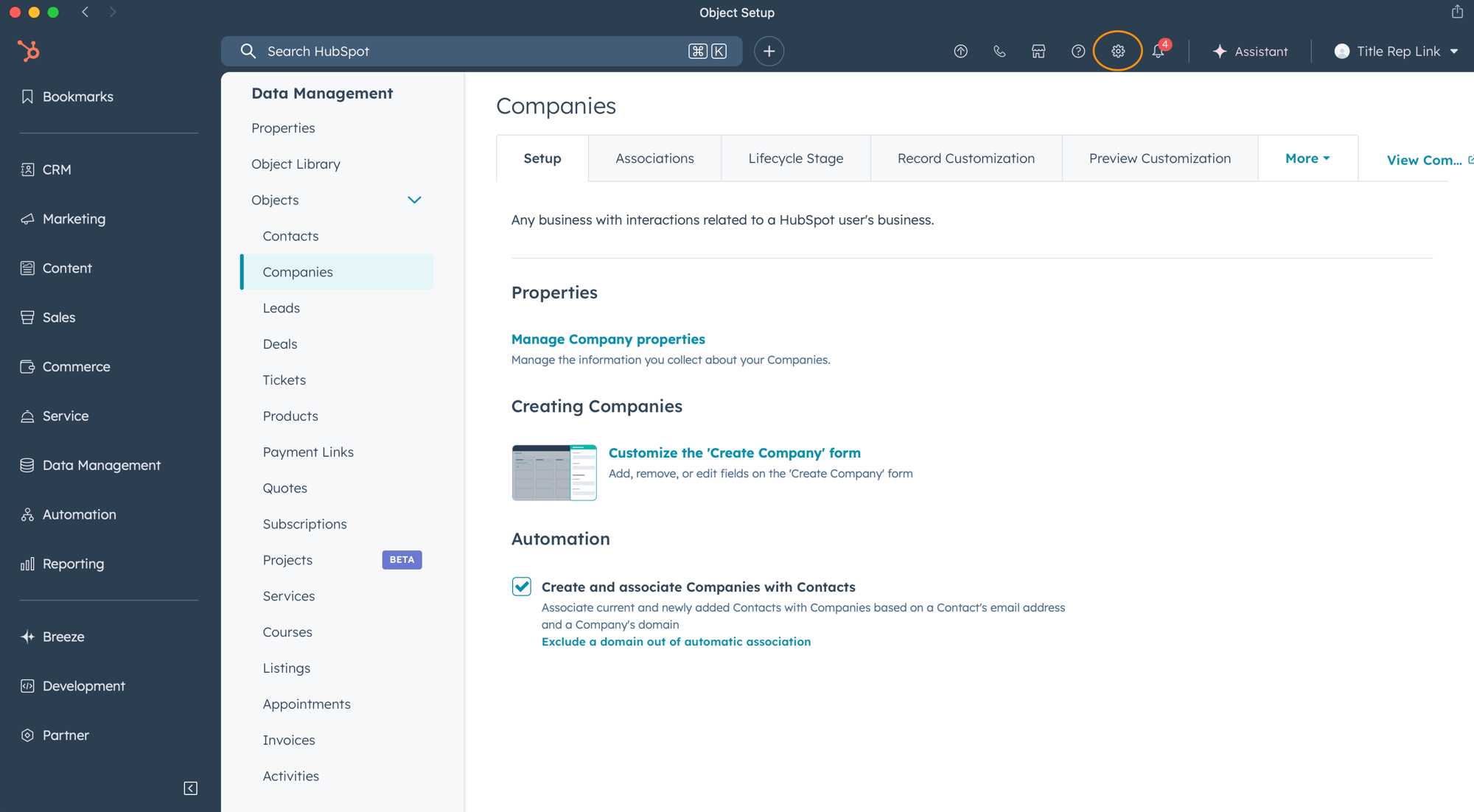
Within HubSpot, additional fields are required to import information. To create these fields, navigate to Settings (the gear icon in the upper right-hand corner), go to Data Management, Objects and then access each relevant subset to add the necessary fields. Click on Manage [Subset Name] properties, then Create Property.
For the first example we will add Qualia ID as a property in the Companies subset.
If you’re comfortable creating properties, you’ll find a quick-reference table at the bottom of this page with everything you need.
Property Field Creation Continued
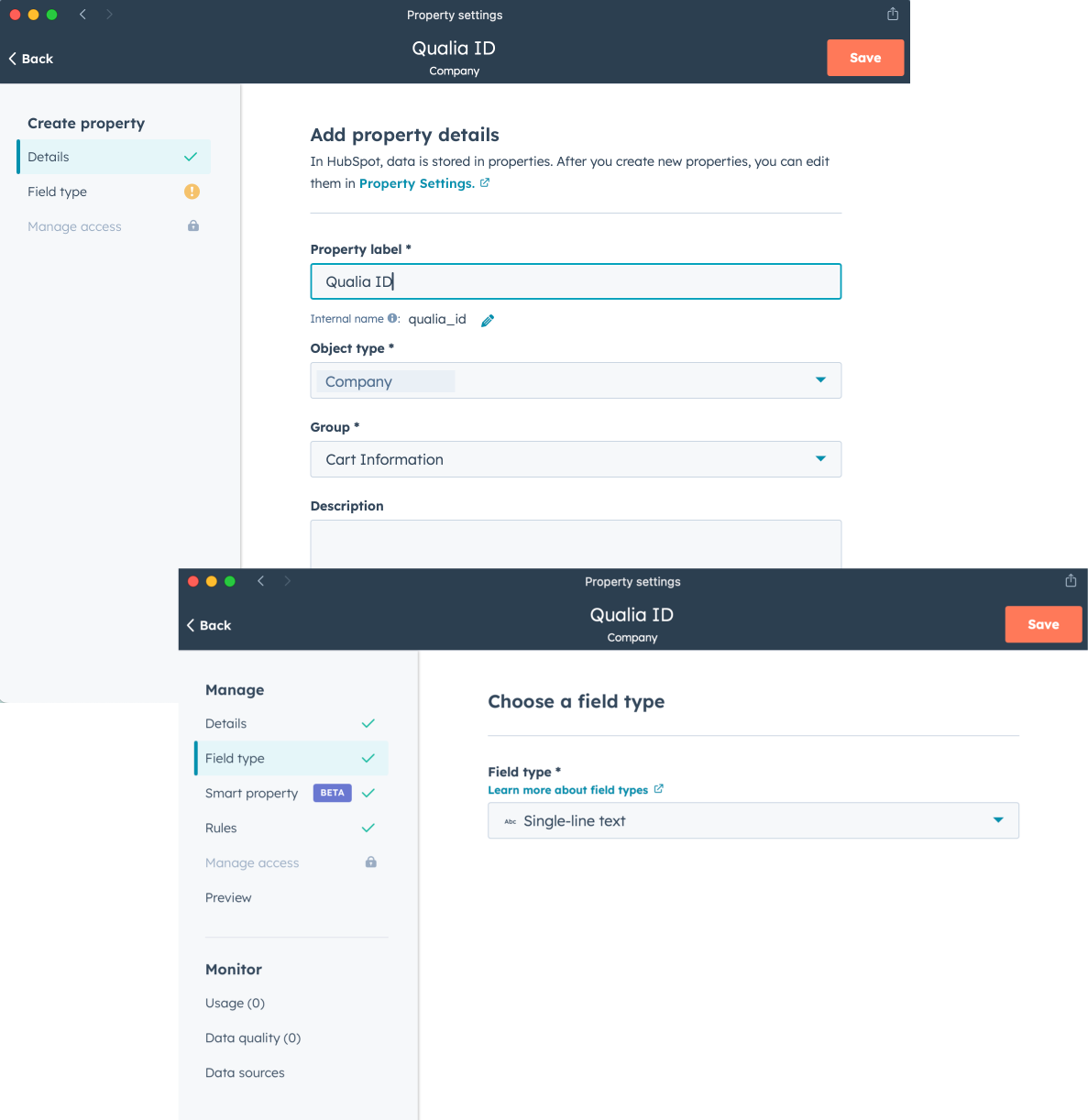
Add a new property with the Property label name set to Qualia ID. When creating properties, pay close attention to the Internal name under the property label, as this must match exactly—our code uses this parameter. If the internal name needs to be edited, click the pencil icon next to it. Then, in the second tab, set the Field type to Single-line text.
Repeat this process to create a second property named County with an internal name of county with Field type, Single-line text.
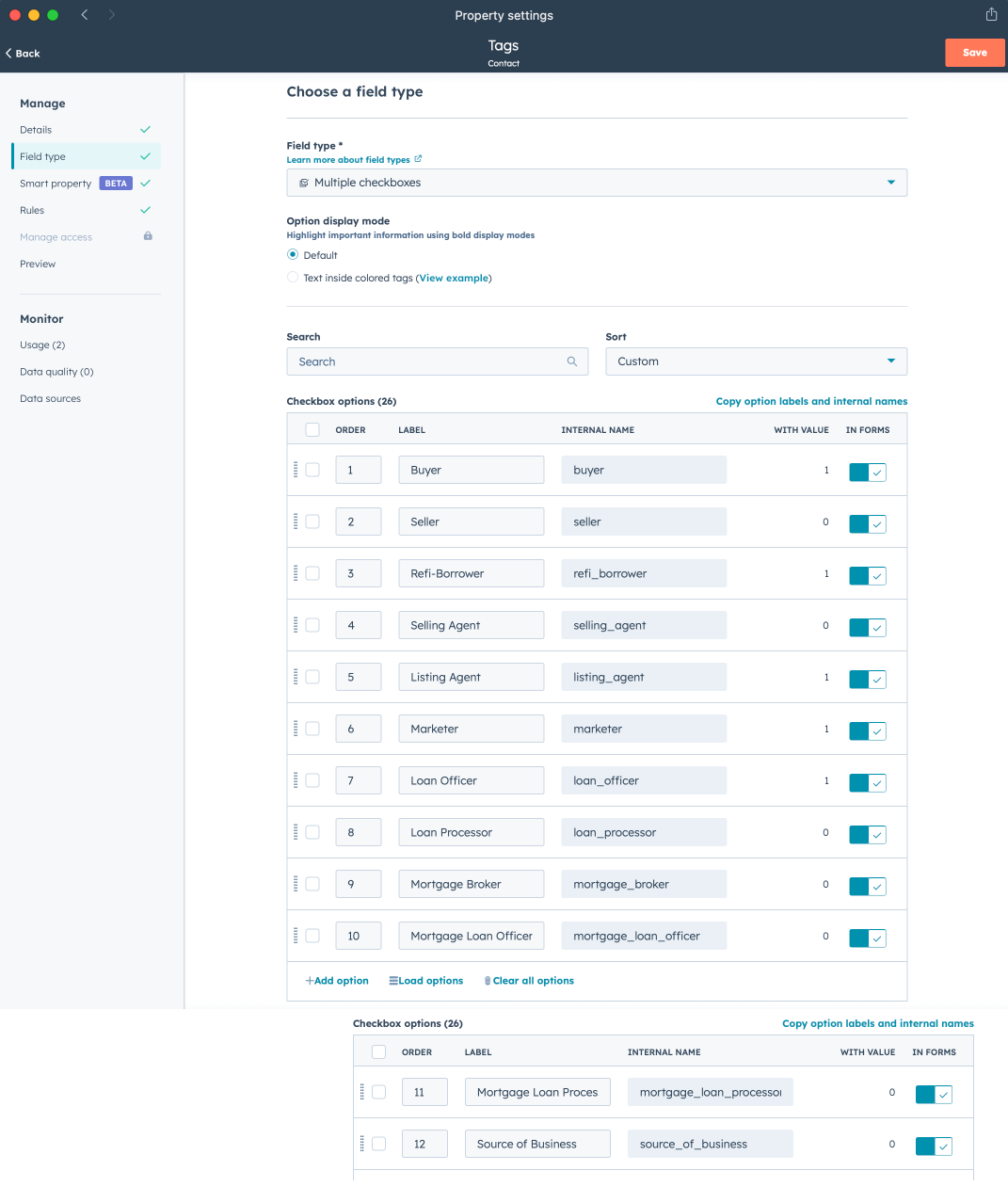
Navigate back to the Data Management section, then select the Objects tab and choose the Contacts subset. Click on Manage Contact Properties, then select Create Property. This time, create a property with the property label set to Tag and the Internal name set to tags. For the Field type, select Multiple checkboxes.
You will need to manually create the checkbox options using the tag names listed below. Additional tags can also be added to fit your instance if you need to further filter contacts—these extra tags will not affect the data feed.
|
1 |
Buyer |
buyer |
|
2 |
Seller |
seller |
|
3 |
Refi-Borrower |
refi_borrower |
|
4 |
Selling Agent |
selling_agent |
|
5 |
Listing Agent |
listing_agent |
|
6 |
Marketer |
marketer |
|
7 |
Loan Officer |
loan_officer |
|
8 |
Loan Processor |
loan_processor |
|
9 |
Mortgage Broker |
mortgage_broker |
|
10 |
Mortgage Loan Officer |
mortgage_loan_officer |
|
11 |
Mortgage Loan Processor |
mortgage_loan_processor |
|
12 |
Source of Business |
source_of_business |
|
13 |
Non-Directing |
non_directing |
All needed fields for API feeds
Here are quick reference tables for all required TitleLinkRep fields. The walkthrough above covered Company and Contacts. You’ll also need to add Deals.
Company
Label |
Internal name |
Type |
|---|---|---|
Qualia ID |
qualia_id |
single line text |
Country |
country |
single line text |
Deals
Order |
Label |
Internal name |
|---|---|---|
Address Line 1 |
address_line_1 |
single line text |
City |
city |
single line text |
County |
county |
single line text |
Disbursement Date |
disbursement_date |
date picker (date only) |
Loan Amount |
loan_amount |
number (currency) |
Purchase Price |
purchase_price |
number (currency) |
Stage |
stage |
single line text |
State |
state |
single line text |
Status Summary |
status_summary |
single line text |
Zip |
zip |
single line text |
Contacts
Label |
Internal name |
Type |
Value |
|---|---|---|---|
Tags |
tags |
multiple checkboxes |
see below |
From above, Tags within Contacts - check box options
Order |
Label |
Internal name |
|---|---|---|
1 |
Buyer |
buyer |
2 |
Seller |
seller |
3 |
Refi-Borrower |
refi_borrower |
4 |
Selling Agent |
selling_agent |
5 |
Listing Agent |
listing_agent |
6 |
Marketer |
marketer |
7 |
Loan Officer |
loan_officer |
8 |
Loan Processor |
loan_processor |
9 |
Mortgage Broker |
mortgage_broker |
10 |
Mortgage Loan Officer |
mortgage_loan_officer |
11 |
Mortgage Loan Processor |
mortgage_loan_processor |
12 |
Source of Business |
source_of_business |
13 |
Non-Directing |
non_directing |